How to Add a WhatsApp Button to Instagram 2026
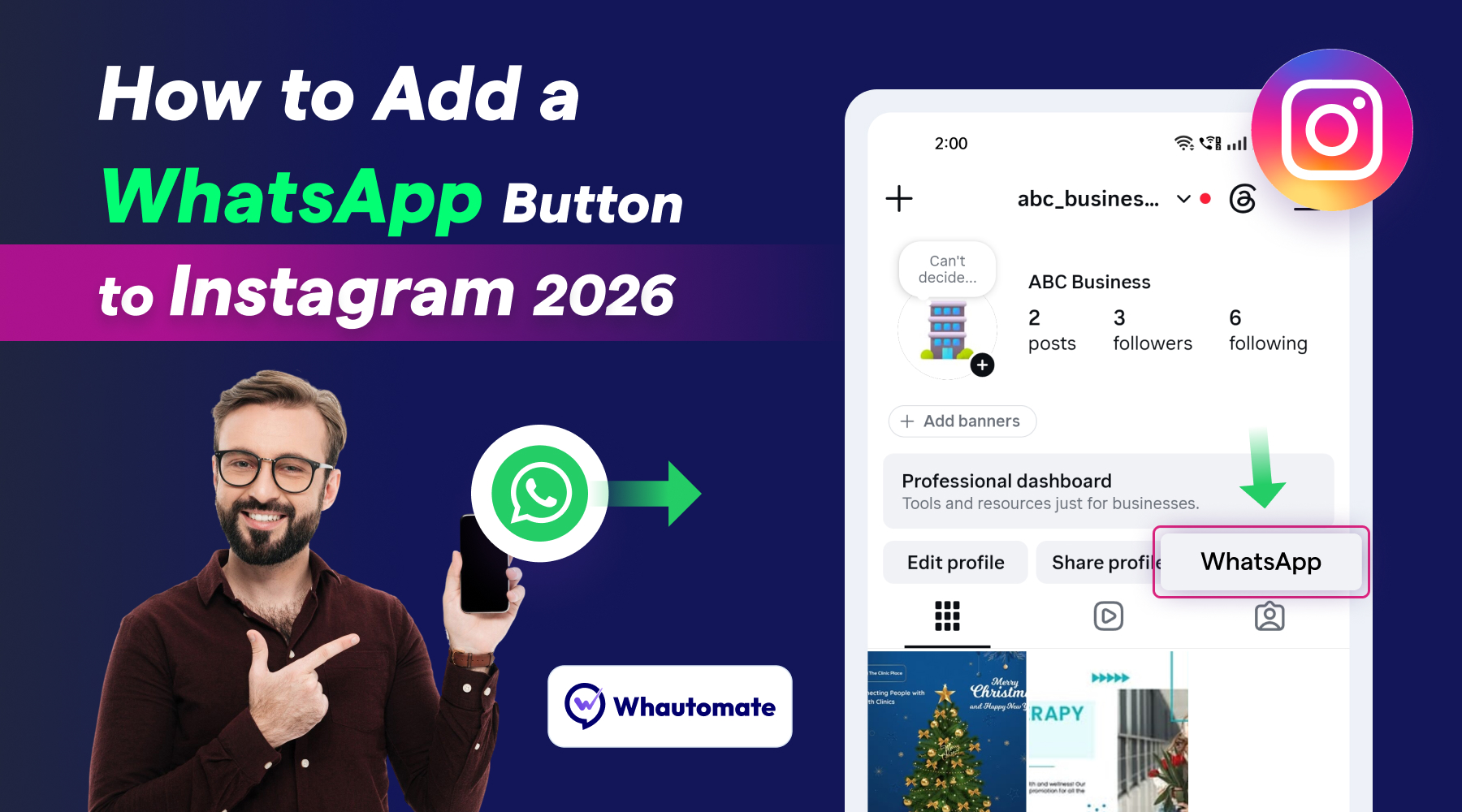
Want to make it easier for customers to contact your business from Instagram?
Adding a WhatsApp button to your Instagram account gives customers a quick way to start a WhatsApp conversation directly from your Instagram profile. Instead of asking customers to save your phone number or search for your business on WhatsApp, they can simply tap the WhatsApp button.
In this guide, you’ll learn how to connect WhatsApp to Instagram, how to link your WhatsApp number to your Instagram account, and how to use Whautomate to automate conversations after customers connect with you.
Why Add a WhatsApp Button to Instagram?
Instagram is one of the most popular channels for businesses to showcase their products and services, attract new customers, and build relationships with their audience.
But getting customers to discover your business is only the first step. You also need to make it easy for them to contact you.
A WhatsApp button creates a direct path from your Instagram profile to your business WhatsApp account.
Instead of:
Instagram → Search for Phone Number → Save Number → Open WhatsApp → Start Chat
Customers can simply:
Instagram → Tap WhatsApp → Start Conversation
This can help businesses:
- Make it easier for customers to contact you
- Convert Instagram visitors into WhatsApp conversations
- Respond to customer enquiries faster
- Generate and qualify leads
- Handle appointment enquiries
- Provide customer support
- Start automated WhatsApp conversations
- Follow up with potential customers
For businesses that receive regular enquiries through Instagram, connecting WhatsApp can create a smoother customer journey from Instagram discovery to WhatsApp conversation.
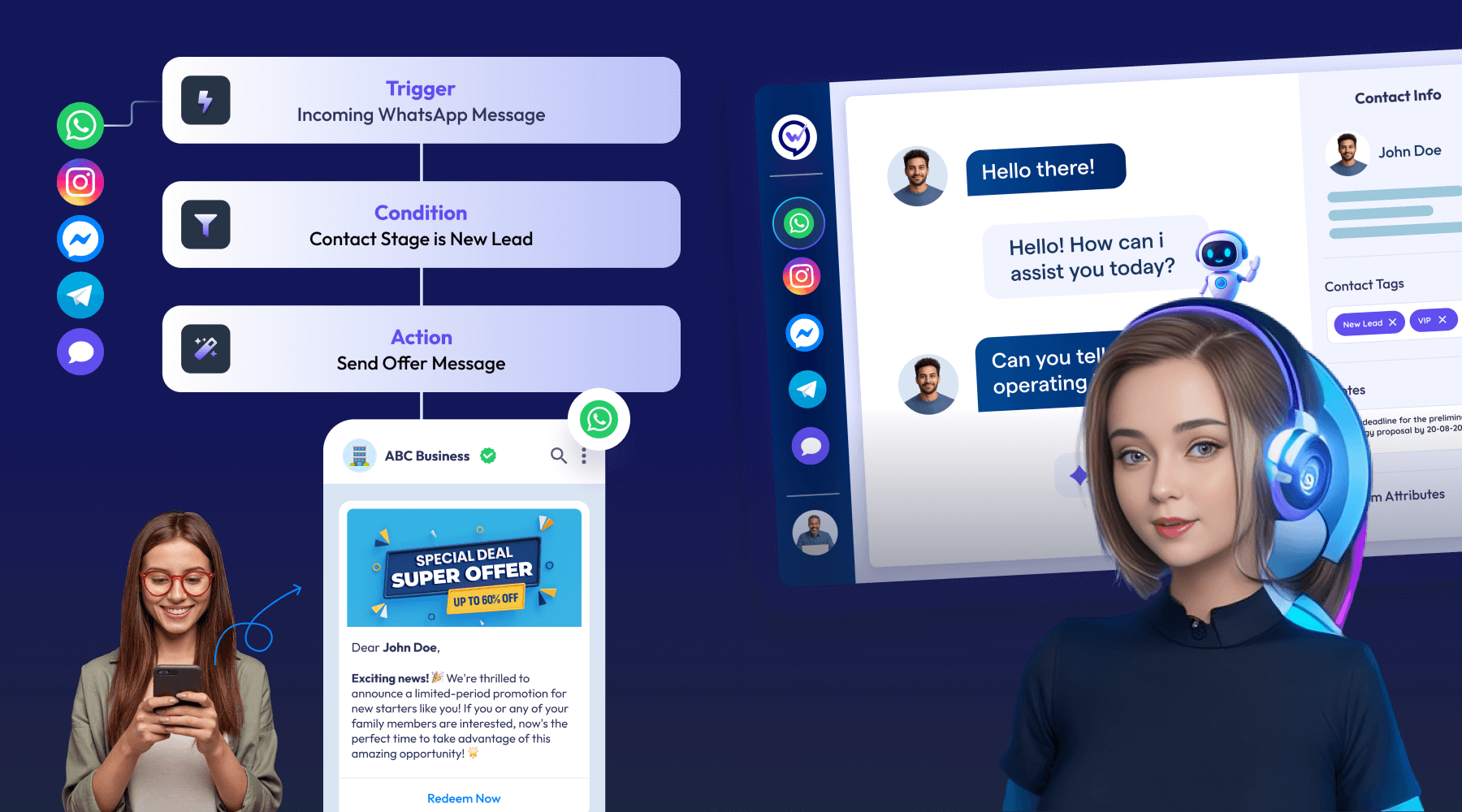
With Whautomate’s Instagram integration, you can take this further by connecting Instagram and WhatsApp with automated customer engagement workflows
How to Add a WhatsApp Button to Your Instagram Account
Adding a WhatsApp button to your Instagram profile makes it easy for customers to start a WhatsApp conversation directly from your Instagram page.
Before you link your WhatsApp number to your Instagram account, make sure you have:
- An Instagram professional/business account
- Access to the Instagram account
- A supported WhatsApp Business phone number
- Access to the WhatsApp number for verification
Important Note Before You Start
Your WhatsApp number must be set up as a WhatsApp Business phone number.
You can use either:
- WhatsApp Business App: A phone number registered with the WhatsApp Business App
- WhatsApp Cloud API: A phone number connected to the WhatsApp Business Platform through the Cloud API
A normal/personal WhatsApp number is not supported for adding a WhatsApp button to your Instagram account.
If you’re using Whautomate, you can connect your WhatsApp Business number via the official WhatsApp Cloud API to automate WhatsApp, build chatbots, book appointments & classes, and handle customer conversations.
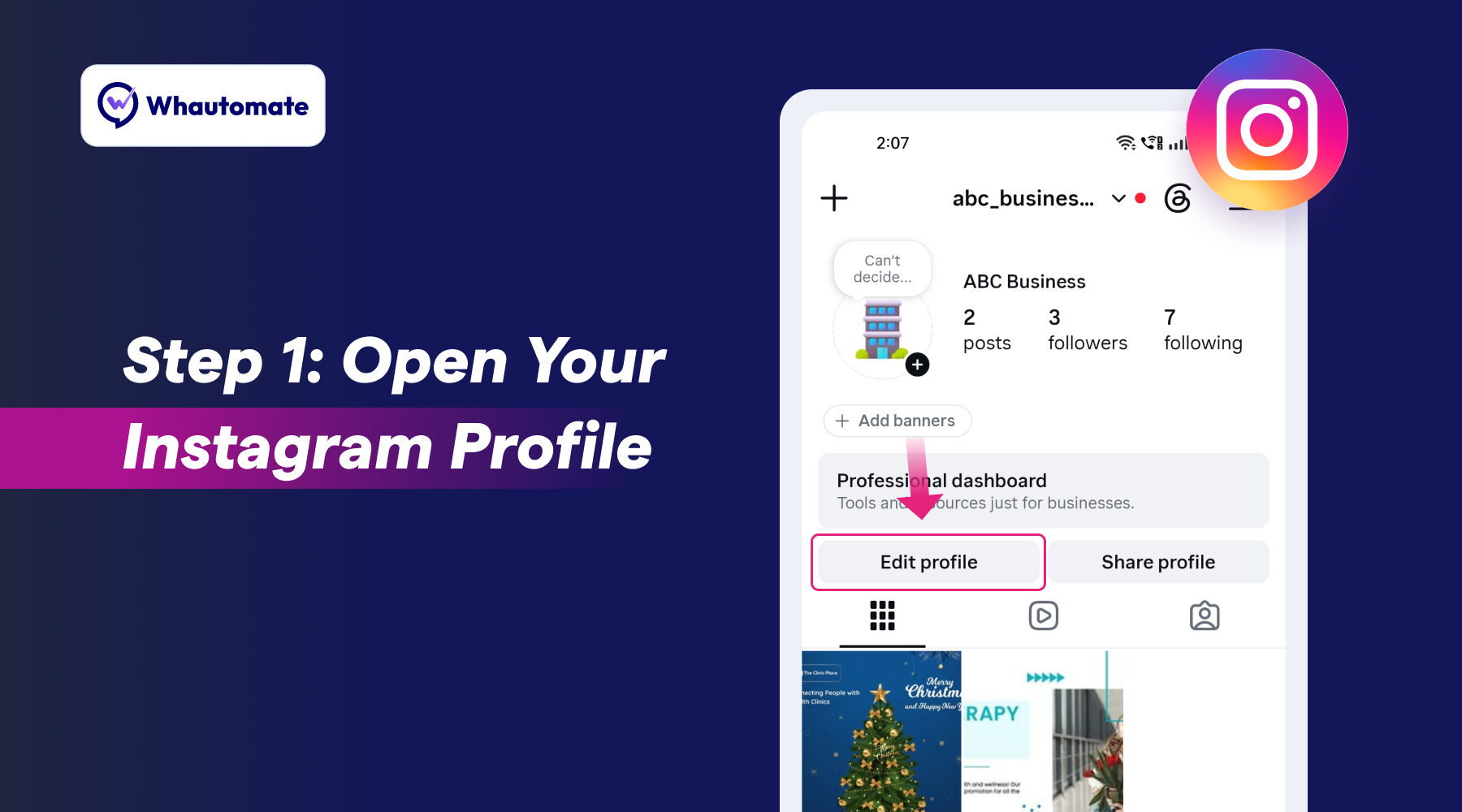
Step 1: Open Your Instagram Profile
Open the Instagram app on your mobile device and go to the Instagram page where you want to add the WhatsApp button.
- Tap Edit Profile.
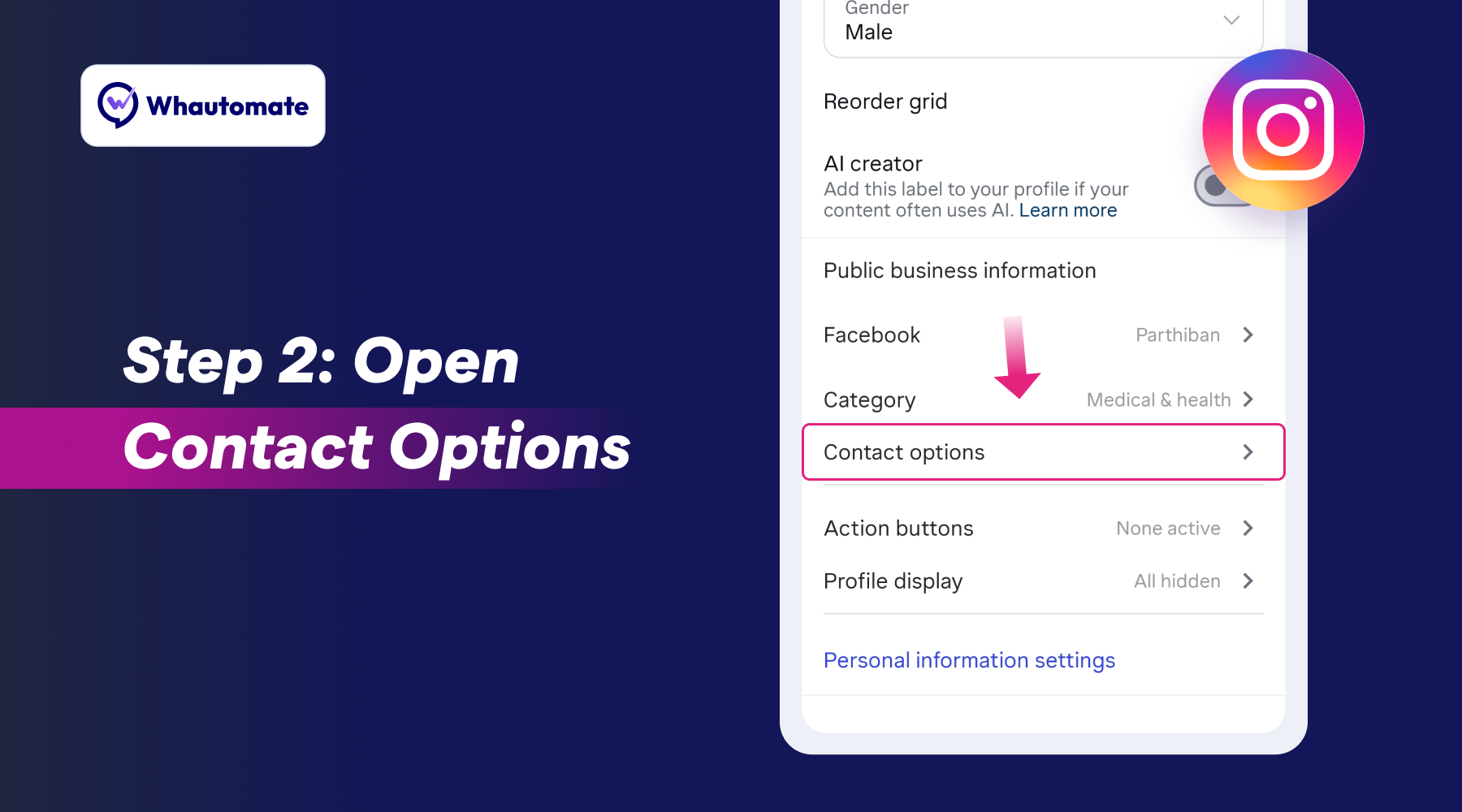
Step 2: Open Contact Options
- Under Public Business Information, tap Contact Options.
- This is where Instagram allows you to add contact methods such as your business email, phone number and WhatsApp Business number.
Step 3: Add Your WhatsApp Business Number
Inside Contact Options, look for WhatsApp Business Phone Number.
Tap WhatsApp Business Phone Number to continue.
You can then select an existing WhatsApp Business number or add the WhatsApp Business phone number you want to connect to your Instagram account.
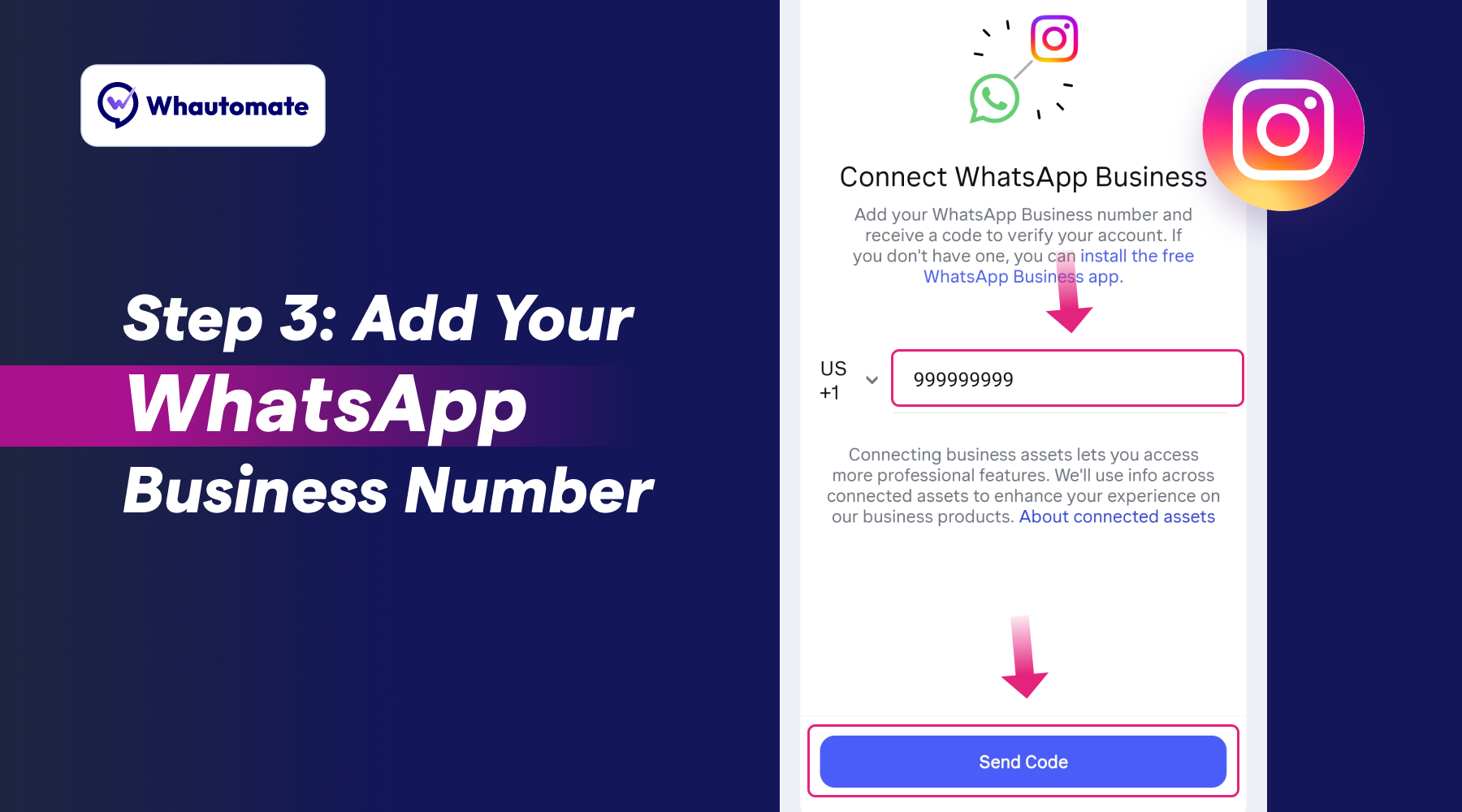
Instagram may ask you to verify the number. Enter the verification code sent to your WhatsApp Business number and complete the verification process.
Once verification is successful, your WhatsApp Business number will be connected to your Instagram account.
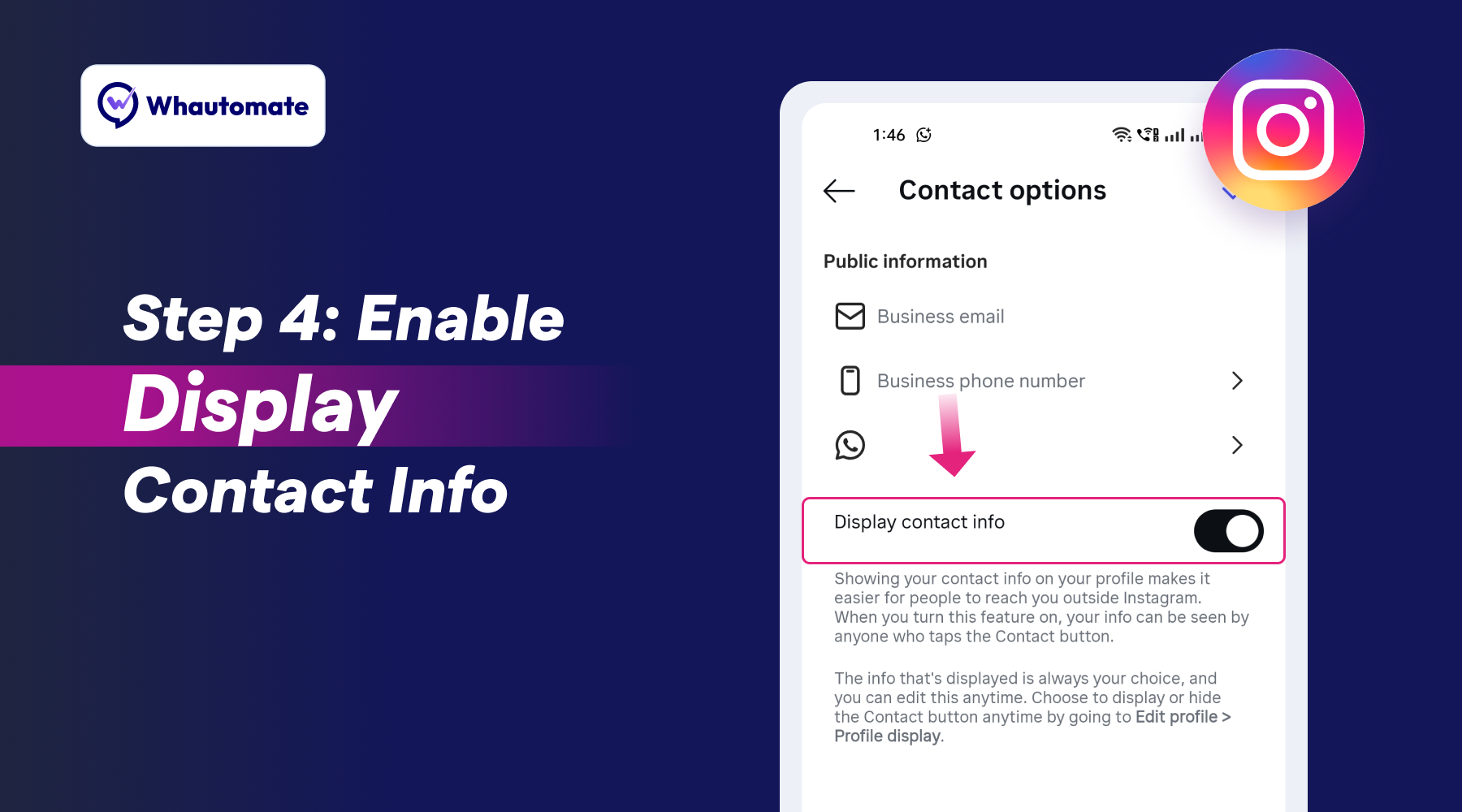
Step 4: Enable “Display Contact Info”
Adding your WhatsApp Business number alone isn’t enough to display the WhatsApp button on your Instagram profile.
After adding the number, go back to your Instagram profile settings and make sure the Display Contact Info toggle is enabled.
Turn on: Display Contact Info → ON
This allows your contact information, including the WhatsApp option, to be displayed publicly on your Instagram profile.
Important
If Display Contact Info is disabled, your WhatsApp number may be connected successfully, but the WhatsApp button will not be displayed on your Instagram profile.
Make sure this toggle is enabled after connecting your WhatsApp Business number.
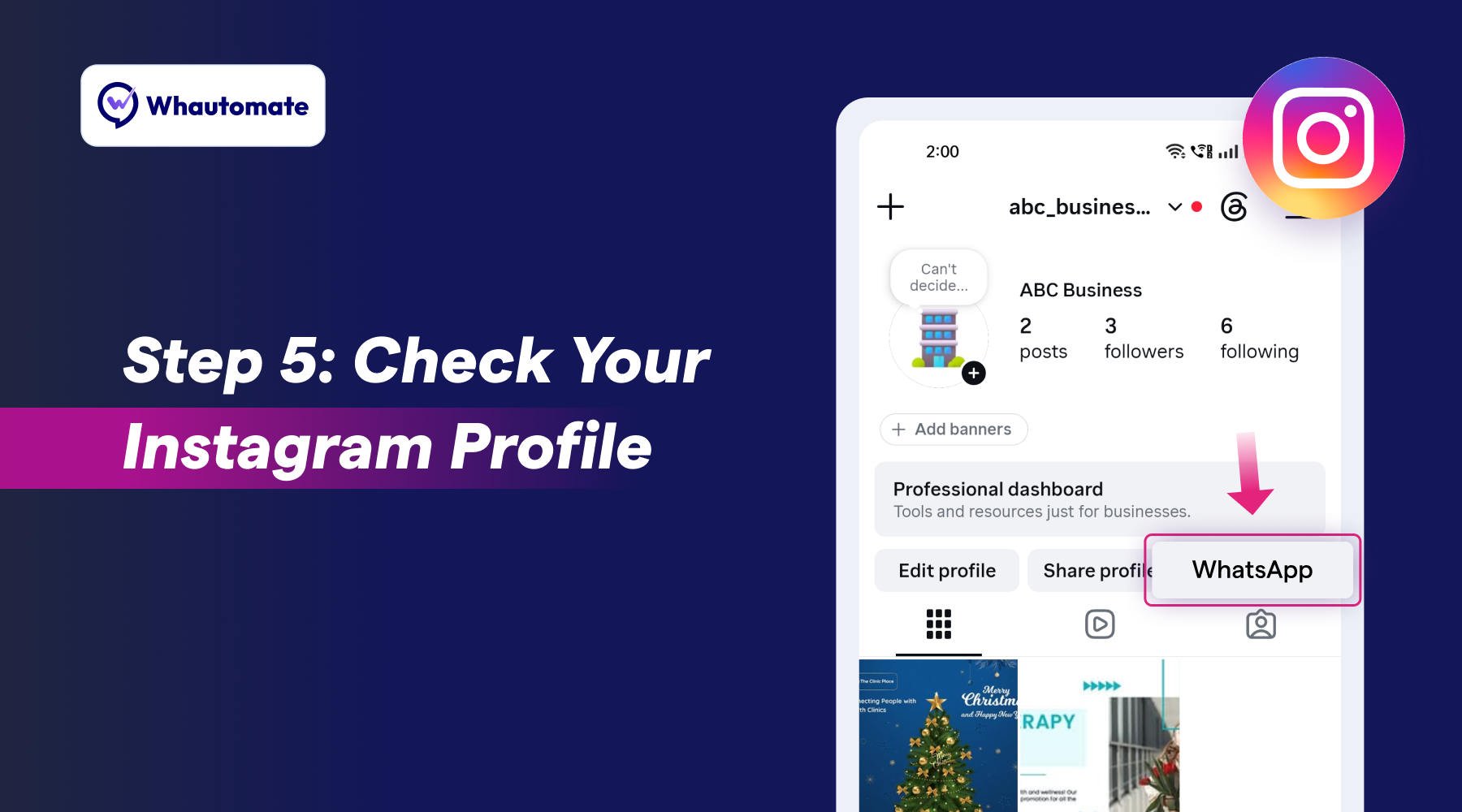
Step 5: Check Your Instagram Profile
Once you’ve completed the setup, return to your Instagram profile.
You should now see the WhatsApp button or WhatsApp contact option on your profile.
Tap the WhatsApp button to make sure it opens a conversation with the correct business WhatsApp number.
Your Customer Journey
Once everything is configured, the customer journey looks like this:
Instagram Profile → WhatsApp Button → WhatsApp Conversation
And with Whautomate, you can take it one step further:
Instagram Profile → WhatsApp Button → Automated WhatsApp Conversation → Lead Qualification → Appointment / Purchase / Support / and more.
Connect Instagram With WhatsApp and Automate Your Conversations
Adding a WhatsApp button gives Instagram visitors an easy way to contact your business. But you can do much more once those customers reach WhatsApp.
With Whautomate, you can automate conversations that start from your Instagram audience and continue through WhatsApp.
Use Whautomate to:
- Automatically respond to new WhatsApp conversations
- Answer frequently asked questions
- Use AI-powered chatbots
- Qualify leads
- Book appointments & classes
- Send appointment & class reminders
- Collect online payments
- Manage conversations through a team inbox
- Follow up with customers
- Automate customer engagement 24/7
- E-commerce engagement
- And more..
Whautomate is an official Meta Business Partner and WhatsApp Tech Provider, helping businesses build automated customer engagement experiences using the official WhatsApp Business Platform.
Ready to turn Instagram visitors into conversations and customers?
Sign up with Whautomate and start automating your Instagram and WhatsApp conversations.
Can I Link My Personal WhatsApp Number to Instagram?
Instagram’s WhatsApp contact option requires a supported WhatsApp Business phone number.
A normal personal WhatsApp number is not supported for adding the WhatsApp button to an Instagram account.
If you want to use advanced automation such as:
- AI Chatbots
- Automated customer journeys
- Appointment Booking
- Class Booking
- WhatsApp Broadcasts
- Omni-Channel Team Inbox
- Payment collection
- CRM Workflows
- WhatsApp Flows
- E-commerce automation
A business-focused WhatsApp setup is recommended.
Whautomate provides integration with the official WhatsApp Business Platform through the WhatsApp Cloud API.
Troubleshooting: WhatsApp Button Not Showing on Instagram
If you’ve added your WhatsApp number but the WhatsApp button isn’t showing on your Instagram profile, check these settings:
1. Check Your WhatsApp Number
Make sure you’re using a WhatsApp Business phone number through either:
- WhatsApp Business App
- WhatsApp Cloud API
A regular personal WhatsApp number is not supported.
2. Enable “Display Contact Info”
- Go to: Instagram → Edit Profile → Contact Options
- Make sure Display Contact Info is turned ON.
- This setting allows the WhatsApp button to appear on your Instagram profile.
3. Check Your WhatsApp Number
- Make sure the correct WhatsApp Business number has been added and verified under: Contact Options → WhatsApp Business Phone Number
4. Update Instagram
Make sure you’re using the latest version of the Instagram app. If the button still doesn’t appear, close and reopen the app and check your profile again.
Still Not Showing?
Double-check that your WhatsApp number is a supported WhatsApp Business number, the number is verified, and Display Contact Info is enabled.
Start Automating Your Instagram-to-WhatsApp Conversations
Adding a WhatsApp button to your Instagram profile makes it easier for followers to start a conversation.
But you can take the experience much further.
With Whautomate, you can connect Instagram and WhatsApp, automate customer conversations, deploy AI chatbots, manage conversations through a team inbox, automate appointment & class bookings, collect payments and build customer journeys that work around the clock.
Turn your Instagram followers into conversations, leads and customers.
Sign up with Whautomate and start automating your Instagram and WhatsApp conversations.
Start your 7-day free trial. No credit card required.